Saved Reports
Saved Reports keeps your results so you can come back to them, compare them, and deploy from them.
Where to find it: left menu → BACKTEST → Saved Reports.
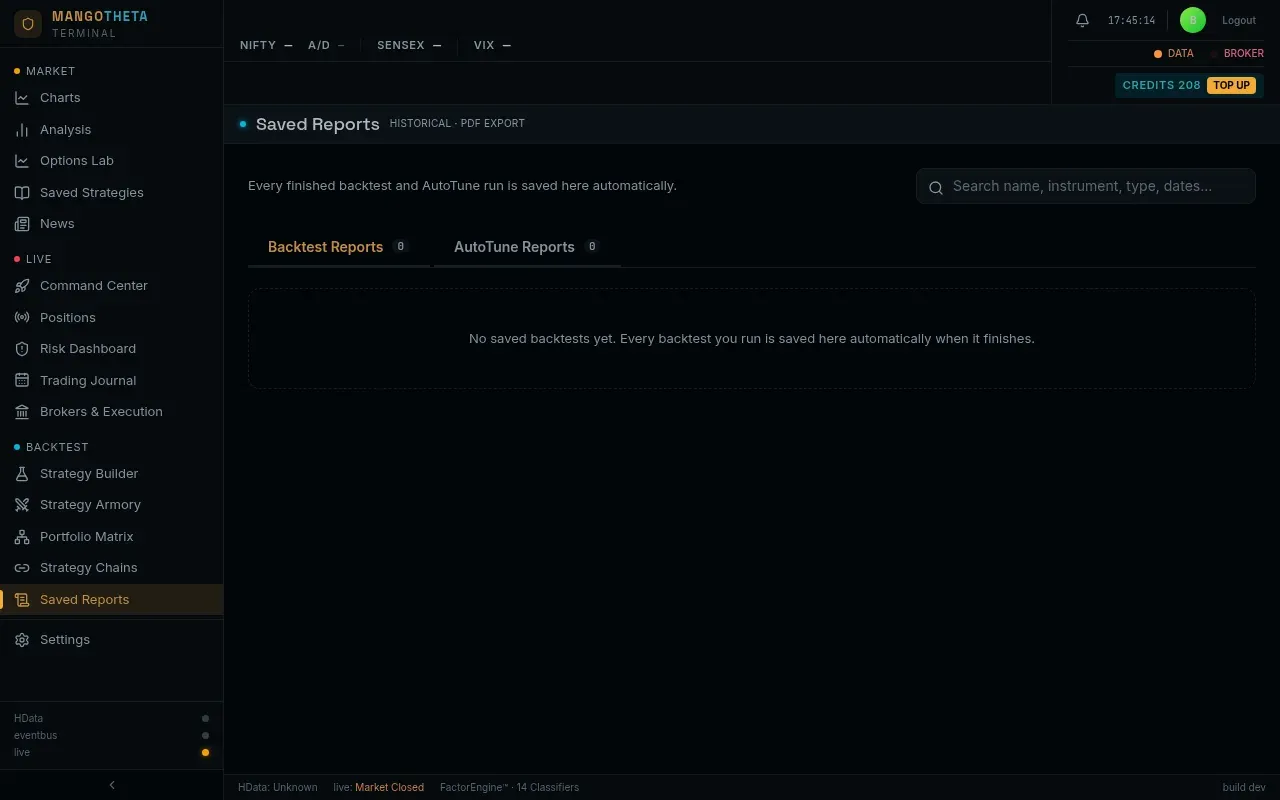
How reports get here
Section titled “How reports get here”Every backtest and every tuning run (Grid Search, Bayesian Search, Walk-Forward, Walk-Forward 2) is saved here automatically when it finishes, even if you closed the page while it ran. A run you cancel, or one that fails, is not saved. If the automatic save itself fails, the run still finishes normally but its report is missing here: open the result and click Save Report.
Running & Recent Jobs
Section titled “Running & Recent Jobs”Your recent jobs are listed at the top with their status and progress. The list updates by itself.
- Open report: the job finished and its report is saved. Click to open it.
- Not saved: no report for this job is in your list, because it failed, was cancelled or produced no results.
Find a report
Section titled “Find a report”Two tabs: Backtest Reports and AutoTune Reports, each with its count. The search box (Search name, instrument, type, dates…) filters both.
On AutoTune Reports, the buttons above the table filter by type: All, Grid Search, Bayesian Search, Walk-Forward and Walk-Forward 2, each with its count. Show all types clears the filter.
Example: type BANKNIFTY in the search box and click Walk-Forward: only BANKNIFTY walk-forward
reports remain, with the count on each tab.
Backtest Reports
Section titled “Backtest Reports”| Column | What it shows |
|---|---|
| Saved | When it was saved. |
| Strategy / Instrument | The strategy name and the underlying. |
| Window | The dates it was tested on. |
| Net P&L, Max DD, Win Rate, Profit Factor, Trades | The headline numbers (see Reading your results). |
| Action | View opens the full report; Deploy (below); the bin deletes it. |
The full report is the same report as a fresh backtest (see Reading your results). The line at the top shows when it was Saved, the Instrument, the Window, where the ATM strike was read from (ATM from) and, for a portfolio, how many Strategies it combined. A saved report shows the government charges the run measured under Costs; brokerage, slippage and the DTE filter need the trade list, so they are only on the open backtest result.
AutoTune Reports
Section titled “AutoTune Reports”| Column | What it shows |
|---|---|
| Saved, Strategy | As above. |
| Type | Grid Search, Bayesian Search, Walk-Forward or Walk-Forward 2. |
| Instrument | The underlying(s). |
| Window | The dates searched. For Bayesian Search, a second line gives the OOS dates; for Walk-Forward, the in-sample months, out-of-sample months and step. |
| Tuned | Which settings were varied. |
| Best P&L | The best row’s P&L. A small label says what it was measured on. in-sample (Grid Search): the same days the search chose it on. out-of-sample (Bayesian Search): the later window it never searched. OOS, joined (Walk-Forward): the unseen months joined end to end. |
| Action | View opens it; the bin deletes it. |
View shows the full tuning report: the ranking, the overfitting checks and, for Walk-Forward, each round’s in-sample and out-of-sample results. Its header repeats what the run was: what the best row was Scored on, for Walk-Forward Each window (the months per round), Backtests run and what was Tuned.
A very large run is trimmed to fit when it is saved. Then a yellow Partially stored. note names the panels that were dropped; they show empty. The ranking itself is kept whole, and every row can still be deployed. From inside it you can save or deploy a single setting or a whole basket as a portfolio. See Auto Tune and Walk Forward.
Deploying from a backtest report
Section titled “Deploying from a backtest report”Deploy on a backtest report creates a saved strategy from that result’s settings, records which report it came from, and adds it to the Live Deployments in Paper mode.
Example: last week’s backtest of NIFTY straddle 25% SL looked good. Find it, click Deploy: a strategy with exactly those settings is saved, and it starts on paper in Live Deployments. Watch a few weeks of paper results against the backtest before you think about live money.
Deleting
Section titled “Deleting”The bin icon deletes a report. This cannot be undone. Strategies you already saved or deployed from it are not affected.