Positions
Positions shows what is open right now. It has three tabs:
- Strategy Positions: the positions your deployments opened, as the app tracks them.
- At the Broker: what your broker account actually holds, read straight from the broker.
- Orders: every order the app placed today.
Where to find it: left menu → LIVE → Positions.
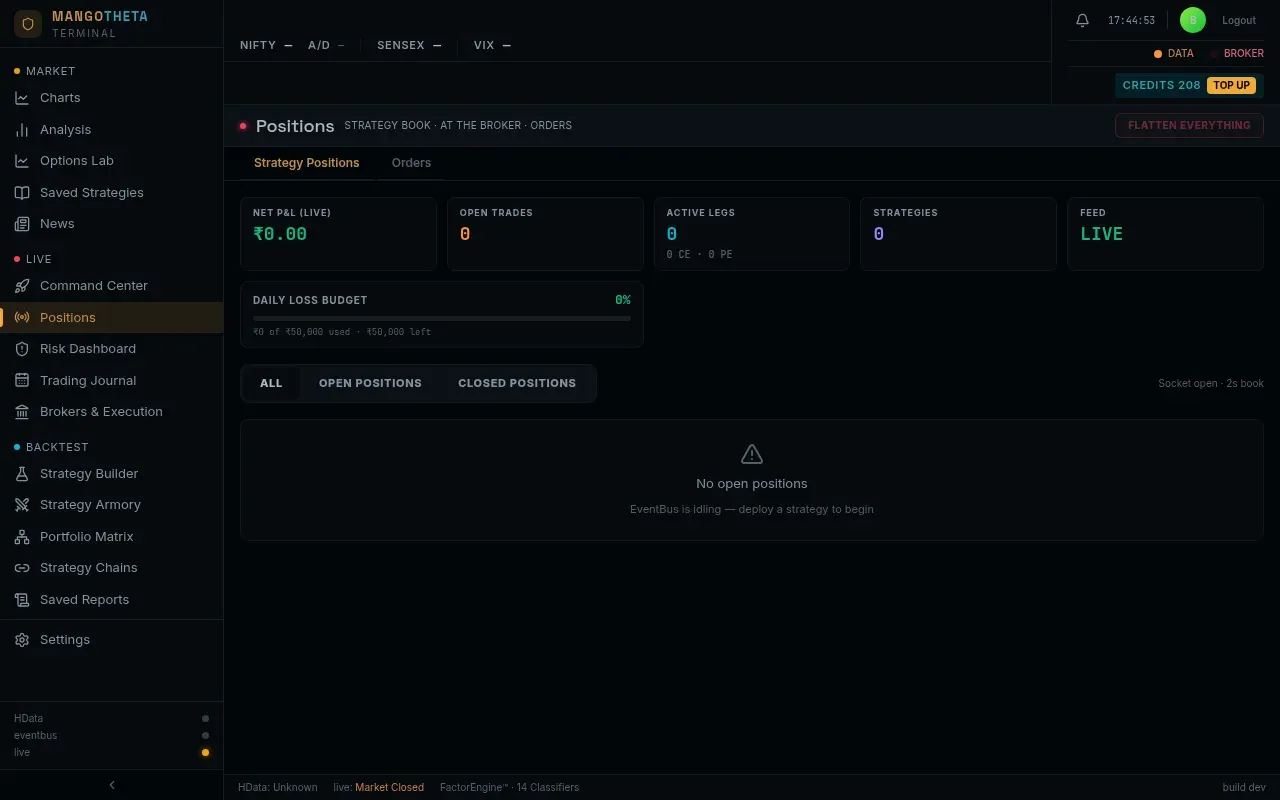
Strategy Positions
Section titled “Strategy Positions”Warnings at the top
Section titled “Warnings at the top”These appear only when something needs your attention:
| Warning | What it means | What to do |
|---|---|---|
| DataHub reconnecting | The live connection dropped. The numbers shown are the last ones received. | Wait for it to reconnect; do not act on stale numbers. |
| n unmanaged position(s) | These trades have open legs, but nothing is running their deployment. Their stop losses are not being watched. | Resume the deployment in the Live Deployments, or square off by hand. |
| One leg filled and another REJECTED | Part of a multi-leg entry was refused by the broker. The app retries for up to 60 seconds; if it still fails, it squares off the filled legs by itself. | Use Square Off on the alert if you do not want to wait. |
| Stale feed | A deployment’s prices have not updated for more than 20 seconds, so its P&L is frozen. | Check the Live Deployments. |
The summary strip
Section titled “The summary strip”| Tile | What it shows |
|---|---|
| Net P&L (Live) | Total P&L of your positions today. |
| Open Trades | Trades with at least one open leg. |
| Active Legs | Open legs, split into CE and PE. |
| Strategies | How many strategies have open trades. |
| Feed | LIVE when prices are flowing, the age in seconds when they are late, RECON while reconnecting. |
| Daily Loss Budget | How much of your daily loss limit is used today, for example ₹12,000 of ₹50,000 used. It also shows the budgets of up to two strategies that have their own Max Loss (live). The limit, and every strategy’s budget, are on the Risk Dashboard. |
Example: Net P&L (Live) −₹8,400, Open Trades 2, Active Legs 4 (2 CE · 2 PE), Feed LIVE, and Daily Loss Budget ₹8,400 of ₹50,000 used. If Feed showed 12s instead of LIVE, the P&L would be 12 seconds old.
The positions table
Section titled “The positions table”Filter with ALL, OPEN POSITIONS and CLOSED POSITIONS. Click any column title to open its menu: sort it (Asc ↑ or Desc ↓), type in Contains…, or tick the values to keep (for example one broker). Columns that can only be sorted say Sort only. Clear column filter clears one column; Clear filters clears them all.
Legs of the same instrument on the same account are shown as one row with their total quantity. Two accounts at the same broker get separate rows; the Broker column then adds the account number after the broker name, for example #4.
Example: two deployments each sold 1 lot (65) of the NIFTY 24,100 CE on your Finvasia account. The table shows one row, SELL 24,100 CE, Qty 130. If one of them was on a second Finvasia account, you would see two rows, Finvasia and Finvasia #4.
| Column | What it shows |
|---|---|
| Broker | The account, or PAPER. |
| Side | BUY or SELL. |
| Instrument | The contract. |
| Status | Open or closed. |
| Qty | Total quantity. |
| Avg Entry | Average entry price. |
| LTP / Exit Price | Live price, or the exit price for closed rows. |
| P&L / Realized P&L | Profit or loss of the row. |
| Square-off | Square off this row. |
- Square off (on a row) closes every leg in that row.
- Close positions (top right, or Ctrl+Shift+F) opens a list of every open position, all ticked. Untick any you want to keep, then click Close n. The strategies keep running and may enter again. To end a strategy for the day, use Square off on Live Deployments.
If an exit order fails, the message says how many failed. Check your broker in that case.
At the Broker
Section titled “At the Broker”This tab reads your broker account directly and changes nothing. It is the only place that shows positions you opened outside the app (for example from your broker’s own terminal) and positions carried from earlier days.
Pick the Account at the top, then a tab:
| Tab | What it shows |
|---|---|
| Positions | Funds and positions. See below. |
| Order Book | The broker’s own list of today’s orders: time, instrument, side, type, quantity, filled, price, trigger, average, status, reason, product, order ID. |
| Trade Book | The broker’s list of fills: time, instrument, side, fill quantity, fill price. |
| Broker Stops | Every stop-loss order the app believes is resting at the broker, checked against the broker’s own orders: MangoTheta state against At the broker, with the number of Slices. It also lists working stops at the broker that the app is not tracking. See below. |
On an account shared by several dealers (for example a prop desk), the Order Book and Trade Book add a switch: MangoTheta’s login only shows the orders this app placed; All dealers on this account shows everyone’s.
Broker Stops tab, at the top:
| Tile | What it counts |
|---|---|
| Resting at broker | Stops seen working at the broker, every slice of them. |
| NOT resting | Stops the app thinks are there, but the broker’s book does not show. Act on these: that leg may be unprotected. |
| Triggered / exiting | Stops that fired and are now being worked as exit orders. |
| Untracked at broker | Working stop orders at the broker that the app does not know about. |
Example: you deployed a short straddle with broker-side stops. Resting at broker 2 is what you want. If it shows NOT resting 1, one leg’s stop is missing at the broker: place it in your broker’s terminal or square the leg off.
Positions tab:
- Tiles from your broker’s risk system: Available + Used, Net Margin Available, Margin Used, MTM (Broker), Realized (Broker), Unrealized (Broker). Then Open Positions and P&L @ LTP, worked out by the app from the broker’s fills and live prices. The broker’s MTM and the app’s figure can differ.
- Net (incl. carry-forward) or Day (today’s trades).
- All, Intraday (MIS), Positional (NRML); All, Open, Closed; and a search box.
- Columns: Instrument, Product, Net Qty, Buy Qty, Buy Avg, Sell Qty, Sell Avg, LTP, Realized, Unrealized.
The app reads the broker at most once every 3 seconds per account, to stay within the broker’s limits. The time of the last read is shown next to the refresh button. If the broker refuses a read, the page says so and shows the last good one. “Broker positions unavailable” does not mean your account is flat.
Orders
Section titled “Orders”Every order the app placed today: entries and exits, in whatever state they reached.
| Tile | What it counts |
|---|---|
| Total Orders | All orders today. |
| Filled | Orders that filled. |
| Working | Orders still waiting at the broker. |
| Failed | Orders the broker rejected or that could not be placed. |
| Cancelled | Orders that were cancelled. |
- Order Book: every order (Time, Strategy, Instrument, Kind, Side, Qty, Type, Price ₹, Status, Remark). The Remark says in plain words what happened. A working order has a Cancel button, which asks the broker to cancel it.
- Trade Book: only the orders that filled.
- Filter by strategy, and by ALL, CE or PE.
The list refreshes every 15 seconds. If it cannot be read, a red note says the list may be incomplete. That is not the same as “no orders today”.