Live Deployments
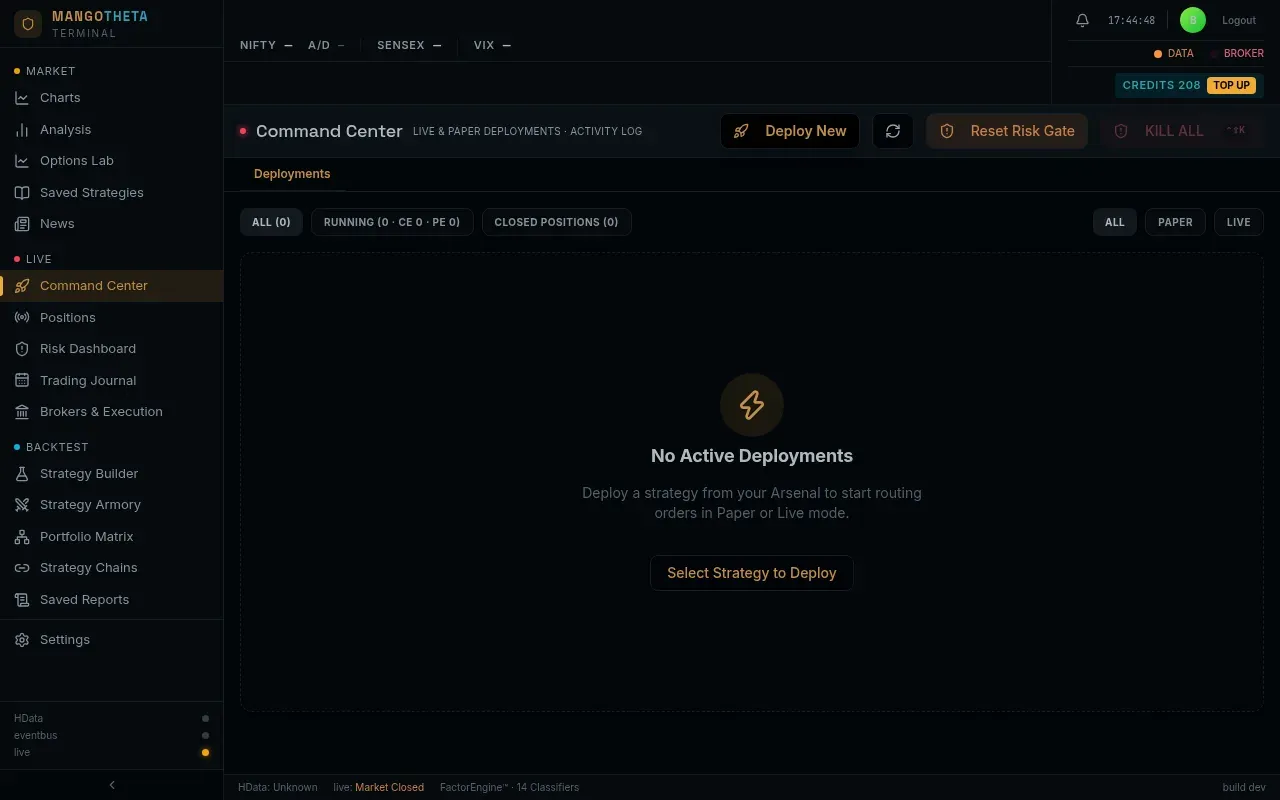
The Live Deployments is where your strategies run. A deployment is a saved strategy set up to trade, either on Paper (simulated fills, no money) or Live (real orders through your broker). From here you start and stop deployments, watch their P&L, and act on their legs.
Where to find it: left menu → LIVE → Live Deployments. It has two tabs: Deployments and Activity Log.
First time: run a strategy on Paper
Section titled “First time: run a strategy on Paper”- Save a strategy first: build it in the Strategy Builder and click SAVE. It goes to your My Strategies.
- In Live Deployments, click Deploy New (or Select Strategy to Deploy on an empty page).
- In Deploy to Live Deployments, click Deploy next to your strategy. The app checks the strategy first; if it finds a problem it shows the reason instead of deploying.
- The new deployment appears in the table, Stopped, in Paper mode.
- Click Start. During market hours it enters at its entry time and trades on simulated fills.
- Watch it here and on Positions. Click the row to see each leg.
- Let it square off at its exit time. To end early, press Sq.Off, wait until its legs show closed, then press Stop.
How Paper fills work
Section titled “How Paper fills work”A Paper order fills about a tenth of a second after it is sent, at the contract’s last traded price. The price is made 0.02% worse for you: a buy pays 0.02% more, a sell receives 0.02% less. Each fill also records an estimate of its brokerage and government charges.
Example: you sell a call whose last price is ₹120.00. The Paper fill is ₹119.98.
If the app has no price for the contract, the order is not filled at a made-up price. It is refused, and the deployment tries again.
A real broker can fill worse than this, especially in a fast market or in a strike that trades little. So Live results can come out below Paper results for the same strategy.
The buttons at the top
Section titled “The buttons at the top”| Button | What it does |
|---|---|
| Deploy New | Opens Deploy to Live Deployments: a list of your saved strategies, each with its own Deploy button. Tick several to deploy them together. A strategy already in Live Deployments cannot be deployed twice. |
| ↻ | Reload the table. |
| Reset Risk Gate | Lifts a block on new entries set by the platform’s risk gate, for example after a market-data outage, a portfolio Greeks limit or the emergency halt. It does not lift the Daily Max Loss block (see the Risk Dashboard): that one is final until midnight, and the message says so when it is still on. |
| KILL ALL (or Ctrl+Shift+K) | The emergency stop. See below. |
| Stop Selected (n) | Appears when you tick running deployments. Stops them, like Stop on each (below). It does not clear their P&L or history. |
KILL ALL
Section titled “KILL ALL”KILL ALL asks you to confirm, then for every running deployment:
- sends a real exit order for every open leg,
- waits for the broker to confirm the position is flat (this can take up to about 20 seconds per deployment),
- stops the deployment.
If a deployment cannot confirm it is flat in time, it is left RUNNING on purpose, so it keeps trying to close. The message tells you which ones; check them afterwards.
A deployment that shows Running but has nothing executing it (see Interrupted below) cannot send exit orders. KILL ALL stops it so it cannot enter again, and a red message says NOT squared off and names it: anything it held is still open. Close those positions at your broker, or check Positions.
Filters
Section titled “Filters”- ALL, RUNNING (with how many CE and PE legs are open), CLOSED POSITIONS.
- One button per underlying you have deployed, to show only that symbol.
- ALL, PAPER, LIVE: show deployments by mode.
The deployments table
Section titled “The deployments table”Click any column title to sort by it. Click a row to open its details.
| Column | What it shows |
|---|---|
| Strategy Name | The name. Not in Armory means this deployment’s settings are not saved in My Strategies; Changed since saved means they differ from the saved copy. Click either badge to save them. |
| Symbol | The underlying. |
| Status | Running, Stopped, Closed (squared off for the day) or Interrupted (see below). Under it: ENGINE LIVE when the engine is running it, NO WORKER when nothing is; the price feed it uses and how old the last price is. |
| Mode | Paper or Live. In Live, the broker account it sends orders to is named here (→ account). ⚠ no broker means it cannot go live. |
| Live P&L | P&L now (or the last P&L, if stopped). |
| Max Profit | The most the open legs can still make if every sold option went to zero. Uncapped when a bought leg is open. |
| Open CE Legs / Open PE Legs | How many call and put legs are open now. |
| Schedule | Entry time → square-off time, and any entry delay (for example +2m). |
| Controls | See below. |
Switching between Paper and Live
Section titled “Switching between Paper and Live”The Paper / Live switch is in the Mode column. You can only change it while the deployment is stopped.
-
To go Live, you need a connected broker account (see Brokers & Execution). If none is bound to the deployment, a Route Live orders through… window lists your accounts with their state (CONNECTED, UNVERIFIED or a fault). Tick one or more. With more than one, the strategy runs independently on each. Every account gets the full size, its own positions and its own risk checks. The Mode column names each account. If one account’s worker stops, that account’s positions are no longer managed, even while the others keep trading.
Example: a 1-lot straddle routed through two accounts sells 1 lot of each leg on each account: 2 lots in all. A reject on one account does not touch the other’s position.
-
In Paper mode, a Feed dropdown chooses where prices come from: Feed: platform or one of your broker accounts’ own feeds. Fills are always simulated in Paper mode.
Controls on each row
Section titled “Controls on each row”| Button | When | What it does |
|---|---|---|
| Start | Stopped | Start the deployment. |
| Edit | Stopped | Change lots, stop loss, target, entry time and square-off time. See Edit. |
| Reset | Stopped | Clear the deployment’s state and its past P&L. |
| Stop | Running | Stop the strategy. Its open legs are not closed: they stay open with nothing watching their stop loss or target (on Live, real positions at your broker). If any leg is open, the app lists them and asks you to confirm. Close them with Sq.Off first. |
| Sq.Off | Running | Exit all open positions now with real orders (on Live). The strategy keeps running and can enter again by its own rules. |
| Resume | Interrupted | Start a deployment that should be running but has nothing running it. |
| Copy icon | Any time | Opens Clone Deployment: type a Clone name (for example 40% SL (Copy)). The copy is a new deployment, Stopped and in Paper mode, and is also saved to My Strategies. |
| Remove icon | Stopped | Remove it from Live Deployments. The strategy stays in My Strategies. |
Inside a deployment
Section titled “Inside a deployment”Click a row to open it. You see:
- Badges: the strategy type, intraday or positional, the number of lots, and readiness notes. A Replay badge shows how closely today’s live run matched a replay of the same rules on today’s data (a lower % is closer).
- Strategy restarts: how many of its whole-strategy restarts (for example after an overall stop) it has used today.
- The legs table, one row per leg:
| Column | What it shows |
|---|---|
| Side, Strike Type, Strike, CE/PE, Expiry | The contract. |
| Entry Spot | The index level when the leg entered. |
| Quantity, Entry Price, LTP / Exit | Size, the fill price, and the live price (or exit price). On an open leg a red tag can follow the price. no quote means no price has ever arrived for this contract. A tag such as 5m quiet means no new price for 5 minutes (it appears after 3). The price shown is then stale, and the leg’s stop loss and target cannot fire, even though the deployment’s feed looks fine. Treat that leg as unprotected. |
| SL, TP | The leg’s current stop loss and target. |
| Reexecute, Reentry | Re-entries used so far, when the strategy uses them. |
| P&L | The leg’s P&L. |
| Status | Open, closed, or waiting (armed but not in the market yet). |
| Manage | Open Manage Leg. See below. |
| Executed Time, Exit Time | When it entered and exited. |
| Latency | How long the order took. |
| Signal LTP | The price when the order was sent. |
| Slippage (pts) / Slippage (₹) | Fill price minus that price. Positive means it cost you. |
If the deployment has orders waiting at the broker, a table lists them (Side, Symbol, Qty, Type, Price, Status, Working) with a Cancel button for each.
Manage Leg
Section titled “Manage Leg”Manage on a leg opens a panel with the leg’s entry, live price and P&L, and these tools. Each one asks you to confirm. On a Live deployment each one places real orders; the engine places them, so watch Positions until the change shows.
| Section | What it does |
|---|---|
| Market Depth | The best 5 bid and ask prices and quantities, the Spread, and Slip. Cost (lots × lot size × spread). Refreshes every 5 seconds. |
| Exit | Close whole leg, or Partial to close some lots (not possible on a 1-lot leg). |
| Scale in — add lots | Buy or sell more of the same contract. This increases the position and its margin. The new lots show as their own row. |
| Re-risk (tighten only) | Set a new stop (New SL ₹) or target (New TP ₹) price, or SL → breakeven to move the stop to your entry price. A change that would make the risk bigger is refused. |
| Trailing stop | Reach (pts) (profit step) and Lock (pts) (lock step), in premium points: for every reach points of profit, the stop moves lock points in your favour. Click Arm trailing stop. It exits by itself if the price turns back through it. |
| Roll — close & reopen | Close this strike and open the same side at another strike: choose CE/PE, Offset (steps) (+ moves away from the money, − closer) and Lots. Two real orders. Rolling fewer lots than the leg holds makes the position smaller. |
| Add hedge (BUY) | Buy an option at an offset from this strike as protection. It shows as its own leg. |
Example: a SELL 24,000 CE leg. Roll with Offset +2 and step 50 closes 24,000 CE and sells 24,100 CE. Offset is in strike-steps: on BANKNIFTY, where the step is 100, +2 from a 52,000 CE would sell 52,200 CE.
Example of a trailing stop: you sold that CE at ₹80. Reach 10, Lock 5. When it falls to ₹70 (10 points of profit), the stop moves 5 points lower; at ₹60, another 5. If the price then climbs back through the stop, the leg is bought back.
Market Depth says Fetching depth… while it loads.
Edit Strategy Params
Section titled “Edit Strategy Params”Available only while the deployment is Stopped. Changes apply the next time you Start it.
| Field | What it changes |
|---|---|
| Lots | Lots of each leg. |
| SL % / TP % | The stop loss and target value of each leg. The number keeps the unit the leg already uses (for a leg built with a points stop, it stays points). Only legs that already have a stop or a target can be changed here. |
| Entry Time / Square Off Time | The schedule. |
| Advanced Execution | Max repegs, Price collar %, Entry cutoff (IST) for this deployment only. Leave blank to use your Execution Settings. |
Activity Log
Section titled “Activity Log”A running list of what your deployments do, as it happens: orders, fills, risk events and system messages.
- Filter with all, orders (the whole order story: placed, filled, closed, rejected), order, trade, risk, system, info, warning, error.
- ⏸ PAUSE stops the list scrolling so you can read it; ▶ RESUME continues.
- A strip at the top shows the state of the app’s background services. A service the server does not report on shows as unknown.
Good to know
Section titled “Good to know”- Positions you deployed from the Options Lab appear here like any other deployment.
- If a Live deployment shows ⚠ next to its broker account while running, nothing is managing its positions on that account. Act immediately.