Brokers & Execution
Brokers & Execution has two tabs:
- Broker Accounts: connect the broker account that live orders go through.
- Execution Settings: the safety rules for every live order: how it is priced, how often it is re-priced, and what is refused before it reaches the broker.
Where to find it: left menu → LIVE → Brokers & Execution.
Paper trading needs none of this. You only need a broker account to trade Live.
Broker Accounts
Section titled “Broker Accounts”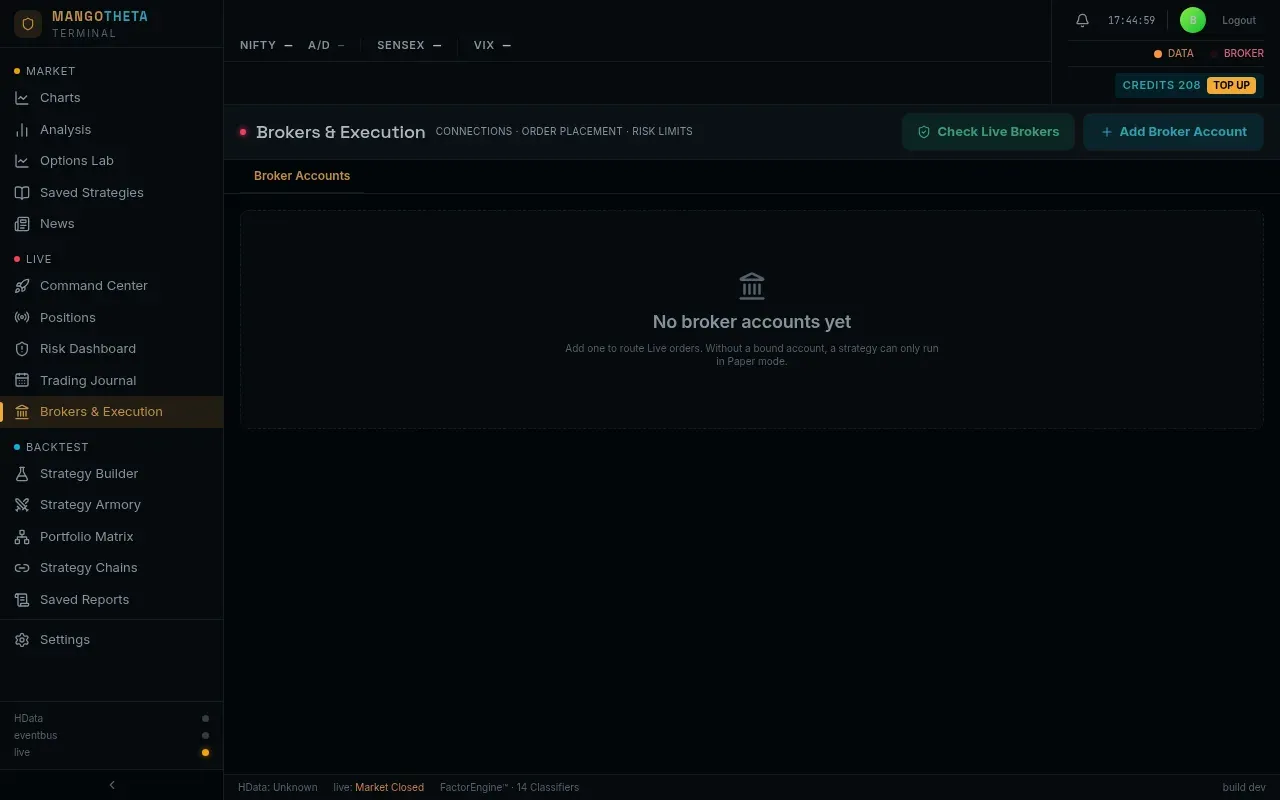
Which brokers you can add
Section titled “Which brokers you can add”| Broker | How you sign in |
|---|---|
| Flattrade | Client ID, App Key, API Secret and the Auth Code from Flattrade’s login page. |
| Jainam (XTS) | Your XTS App Key and Secret Key (and, for a dealer account, the Client ID). |
| Shoonya (Finvasia) | Through Shoonya’s own website (see below). |
| Stoxxo (local bridge) | The address of your Stoxxo bridge. |
Other brokers may show in lists marked NOT LIVE. They cannot be used for live trading yet.
Add a broker account
Section titled “Add a broker account”- Click Add Broker Account.
- Pick the Broker.
- Type an Account Label, your own name for it, for example Finvasia Main.
- Fill in the fields the form asks for. Each label says where to find the value in your broker’s website. Use the eye icon to check what you typed.
- Tick Make this my default account if this should be your main account.
- Click Save Account.
- Click Test on the new row. If it connects, it shows your available margin and the status becomes CONNECTED.
Shoonya: sign in on Shoonya’s website
Section titled “Shoonya: sign in on Shoonya’s website”Shoonya does not let any app sign in with your password. After you save a Shoonya account:
- Click the sign-in button on its row.
- Step 1 — open the broker login: sign in on Shoonya’s own page.
- Step 2 — paste the code back: paste the
?code=...value (or the whole address you were sent back to) into the box.
The accounts table
Section titled “The accounts table”| Column | What it shows |
|---|---|
| Account | Your label. A star marks the default account. |
| Broker | The broker. NOT LIVE means it cannot trade live. |
| Status | CONNECTED, UNVERIFIED (not tested yet), AUTH FAILED (the broker refused the login) or KEY ERROR (the stored credentials cannot be read). The broker’s error message shows under it. |
| Balance | Click Fetch to read the available margin from the broker. |
| Credentials | The first few fields, with secrets hidden. |
| Last Checked | When the account was last tested. |
| Actions | Test, sign in (Shoonya), edit (pencil), Set Default, delete (bin). |
Example: on Monday at 9:00 your Flattrade account shows AUTH FAILED: its sign-in has expired. Click the pencil, paste a fresh Auth Code from Flattrade’s login page, save, and click Test: it shows CONNECTED. Your live deployments on that account can now trade.
Check Live Brokers (top right) tests every account that a Live deployment uses. Do it before the market opens. If one fails, sign in again; a deployment on a failed account will not trade.
Execution Settings
Section titled “Execution Settings”These rules apply to every live order you send. Each field has an i with an example, its default and the values it accepts.
- Changes save when you leave the field. There is no Save button.
- Leave a box empty (or click Restore default) to use the platform default.
- A running deployment picks up a change within a few seconds.
How a live order is placed
Section titled “How a live order is placed”Every live order is a limit order (SEBI’s algo rules do not allow market orders). To make it fill like a market order, the app prices it a little through the market: above the last price to buy, below it to sell. If it does not fill, it is re-priced a little further each time.
Example with the defaults, buying an option at ₹100: the order goes out at ₹100.50, then is re-priced to ₹101.00, ₹101.50, and finally ₹105.00, at least 1.5 seconds apart. An entry still unfilled after that is cancelled and you are alerted. An exit keeps working until it fills.
On Shoonya and Flattrade accounts, order updates arrive over the broker’s live connection, and the app then re-checks a working order only about every 5 seconds. So there the re-prices come about 5 seconds apart, whatever Repeg interval says.
Order Placement & Chase
Section titled “Order Placement & Chase”| Field | Default | What it does |
|---|---|---|
| Price orders from | LTP | Price from the last traded price, or from the bid/ask the order has to cross. |
| Initial offset from LTP (%) | 0.005 (0.5%) | How far through the market the first price is. |
| Minimum offset (ticks) | 2 (₹0.10) | A floor under that offset, for cheap options. |
| Final rung escalation (%) | 0.05 (5%) | How far through the market the last re-price goes. |
| Final rung cap (Rs) | none | A rupee limit on that last re-price. ₹3 on a ₹900 option keeps the last price at ₹903, not ₹945. |
| Repeg interval (sec) | 1.5 | Shortest wait before each re-price (about 5 seconds on Shoonya and Flattrade, see above). |
| Max repegs | 3 | How many re-prices before the chase ends. |
Retry & Resilience
Section titled “Retry & Resilience”| Field | Default | What it does |
|---|---|---|
| Placement attempts | 3 | Tries to place an order when the broker call itself fails (counting the first). |
| Retry wait (sec) | 0.5 | Base pause between those tries. It grows each time. |
| Fill-confirmation poll interval (sec) | 0.5 | How often the broker’s order book is read to confirm a fill, when the broker’s live order updates are not available. |
| Unconfirmed-order alert threshold (sec) | 120 | Warn if an accepted order still does not appear in the broker’s order book after this long. |
Example with the defaults: the broker’s server times out when the app sends an order. The app waits about 0.5 seconds and tries again, then waits a little longer and tries a third time. If all three fail, the order is recorded as failed and you are alerted. If the broker accepted it but it is still not in the order book 2 minutes later, you get a warning to check your broker.
Pre-Trade Risk Limits
Section titled “Pre-Trade Risk Limits”An order that fails any of these is refused before it is sent, and the reason is recorded.
| Field | Default | What it does |
|---|---|---|
| Max order quantity | 10,000 units | The largest single order, in units, not lots. 10 NIFTY lots = 650 units. |
| Max order notional value (Rs) | ₹50,00,000 | The largest order premium (price × quantity). |
| Price collar (%) | 0.10 (10%) | Refuse an order priced further than this from the last price. Option at ₹100: ₹90 to ₹110 allowed. |
| Max orders per second | 10 | New entries per second, across all your live deployments together. |
| Duplicate-order suppression window (sec) | 5 | Refuse the same strategy’s identical entry again within this many seconds. |
| Entry cutoff time (IST, HH:MM) | off | No new entries after this time; an entry still waiting is cancelled. Exits are never blocked. |
| Margin buffer (%) | 0 (off) | Refuse an entry unless your free margin covers its estimated margin plus this extra. If the broker does not report your funds, or the margin cannot be worked out, the check is skipped and the entry is sent (the order log notes it). Do not rely on it as your only margin guard. |
| Max feed silence for a new entry (sec) | 10 | Refuse a new entry if live prices have stopped arriving for longer than this. Exits are never held. |
A single deployment can override Max repegs, Price collar and Entry cutoff in its own Edit → Advanced Execution on the Live Deployments.